
After sending: confirmations and emails
Confirmations, emails and routing, confirm by email, review before accepting, the answers page, and the order things happen in.
What a form does once someone presses its send button: the confirmation they see, the emails that go out, and the optional steps that hold an entry back until the sender confirms their email or someone approves it. Everything here is set per form in the builder, in the Settings and Emails tabs. Like the rest of the form, these settings take effect for visitors when you publish.
The order things happen in#
When answers arrive, Kindly works through them in this order. Every way answers can arrive goes through the same path: the form on a page, a browser without scripts, the AI tools, and the form's own page.
- Is the form open? A closed, scheduled, full or sign-in-only form refuses the answers with its message. See Limits and spam protection.
- Spam checks: the hidden trap field, the page token, the sending rate, the person check, then network and country rules.
- Answers are collected and cleaned per field type. Calculations run. Answers to fields the visitor couldn't see (hidden by conditions) are dropped and never stored.
- Validation. Problems go back to the visitor next to each field. Word and empty-form rules run here.
- Quiz scoring and payment preparation, when the form has them.
- Akismet, when on. By default an entry Akismet flags is kept in Spam quietly: the visitor still sees the normal confirmation, and no emails or connections run. With the site setting When Akismet says spam set to Refuse it, nothing is kept and the visitor sees the Looks automated message.
- The entry is stored (unless the form keeps no entries) with a status: Unread, Email not confirmed or Waiting for approval.
- Emails and connections for the "when sent" event run, unless the entry is waiting for an email confirmation or approval. A form that keeps no entries still sends its emails and connections.
- The confirmation is chosen and shown, or the visitor is sent to a page or address.
Passwords from password fields are used for account creation in the same request and then dropped. They are never stored, emailed or sent to connections.
Confirmations#
Settings > After sending lists the form's confirmations. The first that applies is used. The first one is the Default; any you add below it apply only when their conditions hold.
How the choice is made:
- Kindly goes down the list and uses the first confirmation that is on, has Only when conditions are met on, and whose conditions match the answers.
- If none match, it uses the first one without conditions (normally the Default).
- If nothing is left, it shows "Thank you. Your answers were sent."
Each confirmation has these settings:
| Setting | What it does |
|---|---|
| Name | For you only. Shown in the list. |
| On | Turns an added confirmation on or off. The Default is always on. |
| Then | Show a message, Go to a page or Go to an address. |
| Message | The words shown in place of the form. Smartcodes work, including {all_data}, so the message can repeat the answers back. |
| The form | After a message: Hides (the message replaces the form), Empties (the form stays, emptied, with the message above it) or Stays (the answers stay where they are). |
| Then open | After a message, open one of the site's popups. Popups that aren't published yet are marked "(not published yet)". |
| Page | For Go to a page: one of the site's pages. |
| Address | For Go to an address: any web address. Smartcodes work, for example https://example.org/thanks/{inputs.plan}. |
| Add to the address | Extra query text for a page or address, such as name={inputs.names}&ref=form. Smartcodes are filled in and made safe for an address. |
| Open in a new tab | Opens the page or address in a new tab. The form's page stays where it is. |
| Fill smartcodes on that page | The page or address gets a private link to this entry, and that page's content fills smartcodes from it, such as Thanks {inputs.names.first} or {all_data}. Other braces on the page stay as written, and the page isn't cached or indexed while it shows answers. |
| Shown while going | A short message shown on the form while the browser moves on. |
| Used when | For added confirmations: the conditions, built the same way as field conditions. See Conditions and calculations. |
When the form is placed on a page, a published popup chosen in Then open is brought onto that page automatically, even when the popup has no rule that loads it there. Its audience rules and schedule still apply. See Build and manage popups.
An address that fails validation is ignored and the message is shown instead.
Results added to the message#
Two settings elsewhere add to a message confirmation (not to a redirect):
- A quiz with Show the result after sending adds the result and, for a scored quiz, a table of each question. See Quizzes, surveys, form pages and posts.
- Survey results with Show everyone's results after sending adds bars for every choice question.
Emails#
The Emails tab lists the emails a form sends: "Sent after each entry, to you, your team or the sender." A new form starts with one, Email to the office, sent to the site's admin address with every answer. Use Add an email for more. The first one you add after that is set up as Email to the sender, addressed to the form's first email field.
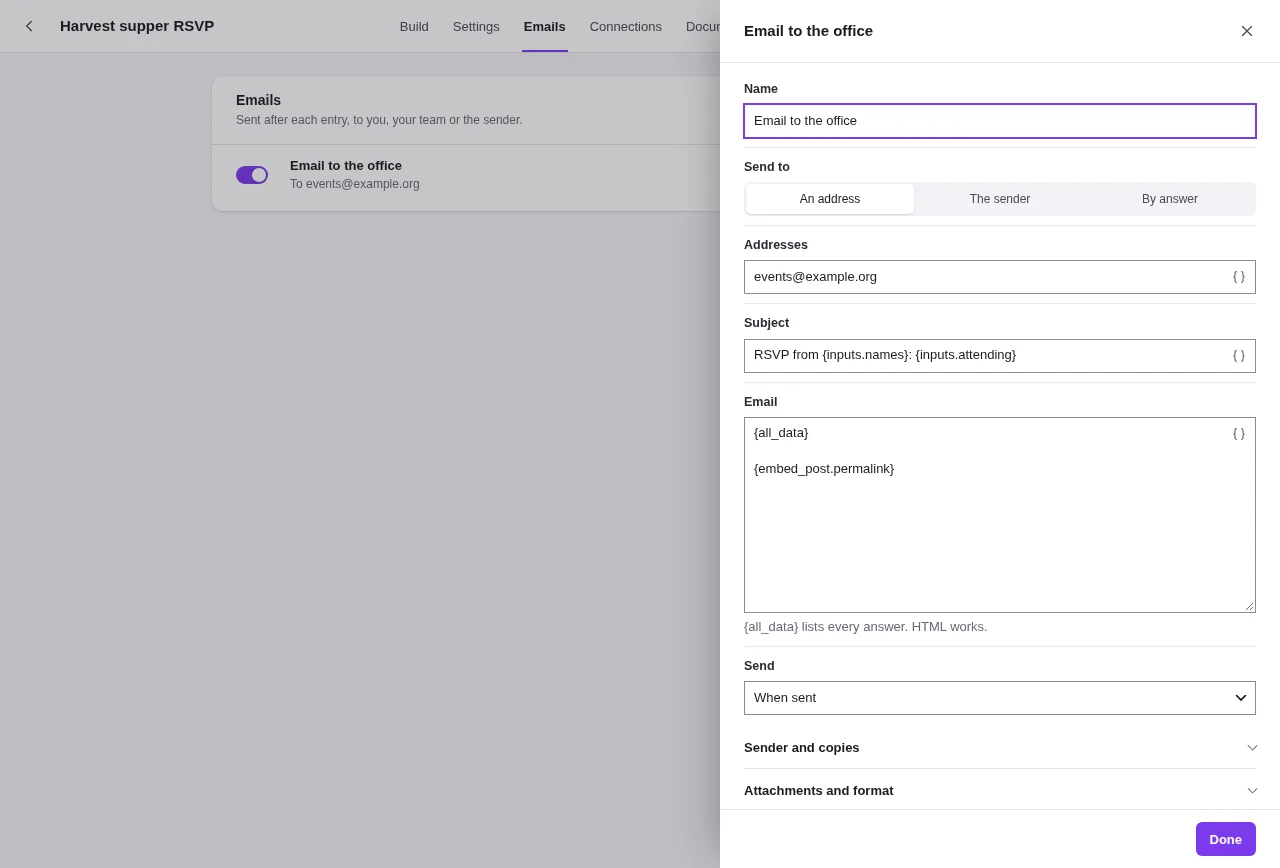
In the list, the switch beside each email turns it on or off. Edit opens its settings in a side drawer. The More menu has Duplicate and Remove. Emails with conditions show With conditions.
| Setting | What it does |
|---|---|
| Name | For you only. Used in the entry's history and the email log. |
| Send to | An address, The sender or By answer. |
| Addresses | For An address: one or more addresses, separated by commas. Smartcodes work, so {wp.admin_email} or {inputs.manager_email} are fine. |
| Their address is in | For The sender: the email field holding their address. |
| Send to each address whose rule holds | For By answer (routing): a list of rules, each an address, a field, a comparison and a value. Every address whose rule matches gets the email. Add an address adds a rule. |
| Subject | Smartcodes work. |
The body. HTML works. {all_data} lists every answer as a table. |
|
| Send | When it goes out: When sent, When the sender confirms their email, When approved, When declined or When payment succeeds. |
| Conditions | Send only when conditions are met, built like field conditions. |
Sender and copies (folded under the main settings):
| Setting | What it does |
|---|---|
| From name | Empty uses the site setting, then the site's title. |
| From address | Empty uses the site setting. "Use an address at the site's own domain so the email arrives." |
| Replies go to | A new form's office email uses {inputs.email}, so replying answers the sender. |
| Copy to, Hidden copy to | Cc and Bcc addresses. Smartcodes work. |
Attachments and format:
| Setting | What it does |
|---|---|
| Attach PDF documents | The form's PDF documents to attach, filled in with this entry. Shown when the form has documents. See PDF documents. |
| Attach uploaded files from | File upload, image upload and signature fields whose files are attached. Shown when the form has such fields. |
| Attach files from the media library | Fixed files, such as a price list, chosen with Choose files. |
| Plain text, without the email design | Sends plain text instead of the designed HTML email. |
Mail goes through WordPress (wp_mail), so the site's mail plugin or sending service delivers it. Use an SMTP or sending-service plugin on a live site.
The email design#
HTML emails use the site's email design: a plain white card with the site's logo or name at the top, the body, and an optional footer. The logo, accent color, footer and default sender are set once in Kindly Edit > Forms > Settings > Email. See Kindly Forms site settings.
What is recorded#
Every email, sent or failed, is written to the entry's history (with its recipients, subject, and any error) and to the form's log. An email with no valid address to send to is logged as not sent. From an entry in Kindly Edit > Forms > Entries, Send an email again resends any of the form's emails, to its usual recipients or to another address you type.
Weekly summary#
Kindly Edit > Forms > Settings > Weekly summary can Email a weekly summary of new entries: the count of entries per form over the last 7 days (spam and trash left out), on the day you choose, to the addresses you list or the site's admin address.
Confirm by email (double opt-in)#
Settings > Confirm by email: "Answers count only after the sender clicks a link sent to their address."
| Setting | What it does |
|---|---|
| Ask senders to confirm their email | Turns it on. |
| Their email is in | The email field the link is sent to. |
| Shown after sending | Replaces the form after sending. Default: "Almost done: check your email and click the link to confirm." |
| Shown after confirming | The page the link opens. Default: "Thank you. Your email is confirmed." |
| Signed-in people don't need to confirm | Signed-in senders skip the step. |
| Write this form's own email | Off: the site's email from Settings > Email confirmation is used. On: write this form's Email subject and Email here. Include #confirmation_url# for the link. |
How it works:
- The entry is stored as Email not confirmed. No emails or connections run yet, apart from the confirmation email itself.
- The link is signed for that one entry. Opening it moves the entry to Unread (or to Waiting for approval when review is also on), then runs the emails and connections set to When the sender confirms their email, then those set to When sent.
- If the confirmation that would apply goes to a page or address, the link sends the person there. Otherwise it shows Shown after confirming.
- If the email answer isn't a valid address, the step is skipped and the entry is handled normally.
- In Entries, Mark email confirmed confirms an entry by hand and runs its When sent emails and connections.
- Unconfirmed entries don't count toward the form's answer limits or survey results.
- Kindly Edit > Forms > Settings > Email confirmation has Delete unconfirmed entries after (days). A daily task removes entries still waiting for a confirmation after that many days. 0 keeps them.
The site-wide email (subject, message, from name and address) is in Kindly Edit > Forms > Settings > Email confirmation. "#confirmation_url# becomes the link to confirm."
Review before accepting (admin approval)#
Settings > Review before accepting: "Emails and connections set to run on approval wait until someone approves the entry."
| Setting | What it does |
|---|---|
| Review each entry | Turns it on. |
| Shown after sending | Replaces the form after sending. Default: "Thank you. Your answers will be reviewed." |
| Accept signed-in people at once | Signed-in senders skip review. |
| Tell declined senders at | An email field. When an entry is declined, one email goes to that address. Empty: no email. |
| Decline email subject, Decline email | That email. Smartcodes work. |
How it works:
- The entry is stored as Waiting for approval. Its When sent emails and connections don't run yet.
- Someone who may edit entries opens Kindly Edit > Forms > Entries and uses Approve or Decline, on one entry or as a bulk action.
- Approve sets the entry to Approved and runs the emails and connections set to When approved, then those set to When sent.
- Decline sets it to Declined, sends the decline email when Tell declined senders at is set (once, even if the entry is declined again), and runs the emails and connections set to When declined.
- With Confirm by email also on, the sender confirms first, and the entry then waits for review.
Answers page#
Settings > Answers page: "A private page where the sender sees what they sent: {entry_link} in a confirmation or email."
| Setting | What it does |
|---|---|
| Give each entry its own page | Turns it on. |
| What it shows | The page's content. Default {all_data}. Smartcodes work, including quiz results and payment details. |
| Only the sender, when signed in | When the sender was signed in, only they (or people who may see entries) can open it. Signed-out visitors are asked to sign in. |
| Keep it out of search engines | Adds a noindex instruction. |
Put {entry_link} in a confirmation message or an email to give the sender the address. The address is signed for that entry, so it can't be guessed from the entry number. Entries in Spam or Trash don't open. An entry sent by someone who wasn't signed in opens for anyone with the link.
Keeping answers#
Settings > Privacy and storage decides what is kept:
- Keep answers in Entries. Off: "answers are only emailed and sent to connections." Emails and connections run right away with the answers; there is nothing to look at in Entries or to run again later. An entry is still kept when the form takes a payment, needs an email confirmation or a review, or is flagged as spam, because those need a record.
- Keep the sender's network address, when the site setting Keep each sender's network address is also on.
- Delete answers after this many days. 0 keeps them. A daily task deletes older entries, except entries whose payment is waiting, processing, paid or partly refunded, or whose subscription hasn't finished: those are kept as payment records.
Related#
- Limits and spam protection
- Smartcode reference
- Connections
- Entries and reports
- Multilingual forms, for which emails are translated