
PDF documents
Make answer sheets, receipts, certificates and letters from each entry, attach them to emails, and share download links.
PDF documents are made from each entry: an answers sheet, a receipt, a certificate, a letter, or a page you design yourself. A form can have several. Each one can be attached to emails, downloaded from the entry, and offered to the person who filled in the form through a download link that expires.
PDFs are made on the site's own server with a bundled library. Nothing is sent to another service, and a document never loads anything from the internet.
The Documents tab#
Open a form and choose Documents. The list shows each document with a switch to turn it on or off, a small picture of its page, and where it is used ("Attached to" an email, "Download link on"). With conditions marks a document with blocks that show only sometimes. The More menu has Duplicate, Copy the download link code and Remove. Removing a document asks first: emails stop attaching it and its links stop working.
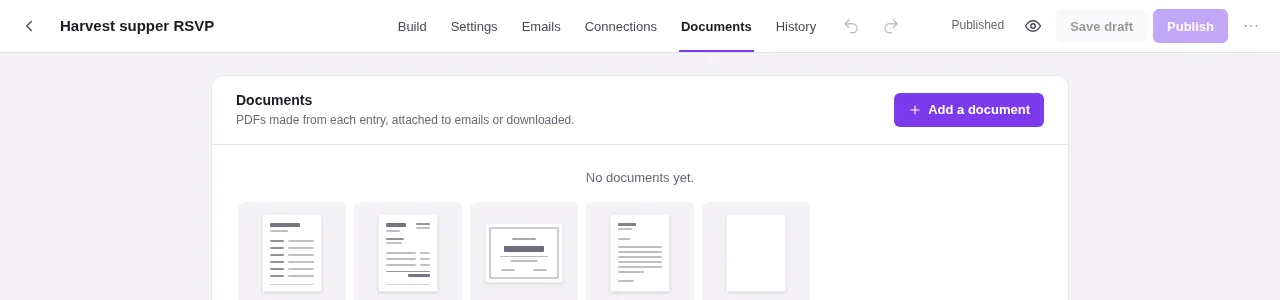
Documents are part of the form, so Undo, Save draft, Publish and History cover them. Emails and links use the published form.
If the server can't make PDFs, the tab says so: the PDF library or a PHP extension it needs (mbstring, dom) is missing.
Add a document#
Choose Add a document and pick a starting point:
| Starting point | Starts as |
|---|---|
| All answers | "Answers": the form's title and date at the top, then every answer in a table. |
| Invoice or receipt | "Receipt": number and date, the site's name and address, "Billed to" from the form's name, email and address fields, then the items and total. |
| Certificate | "Certificate of completion" for the person's name, landscape, serif, with a double border. On a quiz, it shows the score. |
| Letter | The site's name at the top, the date, "Dear" and the person's first name, and a body to write. |
| Blank | An empty page. |
The starting points fill in fields from the form itself, so the result is ready to preview. Everything can be changed afterwards.
The editor#
The editor has the document's settings on the left and a live preview on the right, drawn to scale.
- Document name sits at the top beside the on and off switch. The back arrow returns to All documents.
- Fill with chooses what fills the preview: one of the form's recent entries, or Sample answers made up from the fields.
- Download PDF makes the real file from what is on screen, even before you save.
The settings are in three tabs: Content, Look and Sharing.
Content#
- Top of the first page: words and pictures at the top of page one only.
- Body: a list of blocks. Add a block adds one. Each block can be moved up or down, removed, or set to Show this block only when conditions are met, with the same conditions as fields (see Conditions and calculations). Use this for a paragraph that only applies to some answers.
- Bottom of every page: a footer repeated on each page.
Each part is a small text editor with bold, italic, underline, lists, alignment, links, images, a dividing line and a table. Edit as HTML shows the part's HTML. Insert an answer or other value adds a smartcode. Two codes are for documents only:
| Code | Shows |
|---|---|
{pdf.items} |
The order's items and total, or every answer when the form takes no payment |
{pdf.page_break} |
Starts a new page |
When a part uses {all_data} or {pdf.items}, an Every answer section appears with Layout (Table, or Questions and answers), Include questions left empty and Include hidden values.
Images come only from the site's own Media Library. Styles that would load an outside file are removed.
Look#
Each look setting starts with the site's default (Kindly Edit > Forms > Settings > PDF). Change it here for this document only, or choose Use the site's look for everything to return to the defaults.
| Section | Settings |
|---|---|
| Page | Paper (Letter, Legal, A4, A5), Margins in millimeters, Orientation (Portrait or Landscape), Border (None, Line, Double), Page numbers at the bottom |
| Text | Font (Sans serif or Serif), Size in points, Direction (Left to right or Right to left), Text color, Heading color, Lines and links |
| Logo | The site's logo, Choose another, or No logo. Place (left, center, right) and Size (small, medium, large) |
| Watermark | None, Words or Image, with Strength from 1 to 100 percent |
Sites whose language is US or Canadian English, Canadian French, or another language of a country that uses Letter paper start on Letter; other sites start on A4.
Sharing#
- Attach to emails: a switch for each of the form's emails. The same choice appears in each email's settings as Attach PDF documents, in the Emails tab. See After sending.
- Download link: Anyone with the link can download it. When on, the tab shows the document's code, such as
{pdf.download_link.p1a2b3}, with Copy. Put it in an email or the message shown after sending. - File: File name (starts as
{form_title}-{entry_id}; smartcodes,{entry_id},{entry_serial}and{document}work) and Password to open. The password can be a smartcode, such as an answer the person gave, so each file has its own. The file then needs that password to open.
Download links#
| Code | What it gives |
|---|---|
{pdf.download_link} |
A download link for the form's first switched-on document |
{pdf.download_link.DOCID} |
A download link for that document |
{pdf.url.DOCID} |
A plain address that opens for signed-in people who can see the form's entries |
A download link is signed and works for anyone who has it, until it expires. Links work for 7 days by default; change Download links work for (days) in Settings > PDF (1 to 365 days). A link gives nothing when the document is switched off or doesn't allow downloads, and stops working for an entry marked spam or trashed. People who can see the form's entries can always open it while it is unexpired.
An expired link shows "This link has expired. Ask for a new one." Someone who manages entries can send a fresh one by resending the email from the entry.
From the entries#
- An entry's view has Download PDF, with each document to download or view in the browser.
- On the entries list for one form, select entries and choose Download PDFs to get one zip file with every switched-on document for each, up to 100 entries at a time. This needs PHP's zip support; without it, download them one at a time from each entry.
If a document can't be made, the download says so and the form's activity log has the details.
Site defaults#
Kindly Edit > Forms > Settings > PDF sets the look every document starts with: Paper, Orientation, Margins (mm), Direction, Font, Text size (pt), the Colors (text, headings, accent), Logo (empty uses the email logo), Border, Page numbers, and Download links work for (days).
Fonts and limits#
The two fonts are DejaVu Sans and DejaVu Serif, bundled with the plugin. They cover Latin, Greek, Cyrillic, Arabic and Hebrew. Arabic letters are joined and right-to-left text is put in the right order.
No font for Chinese, Japanese or Korean is bundled, so those characters don't print with the built-in fonts. A site can add a TrueType font for them with the kindly_forms_pdf_fallback_fonts filter. Each entry gives a family name and files, the paths to the regular, bold, italic and bold italic .ttf files on the server. The family is added to every document's font list after the chosen font.
add_filter( 'kindly_forms_pdf_fallback_fonts', function ( $fonts ) {
	$dir = WP_CONTENT_DIR . '/fonts/';
	$fonts[] = [
		'family' => 'Noto Sans JP',
		'files'  => [ 'normal' => $dir . 'NotoSansJP-Regular.ttf', 'bold' => $dir . 'NotoSansJP-Bold.ttf' ],
	];
	return $fonts;
} );
Other limits:
- Up to 50 documents per form and 60 body blocks per document.
- Images must be in the site's uploads; addresses on other sites are not fetched.
- Documents can't run scripts or PHP.
- PDFs attached to emails are made for that email and deleted once it is handed over.
Developers can add paper sizes (kindly_forms_pdf_papers), fonts with their own files (kindly_forms_pdf_fonts), starting points (kindly_forms_pdf_starters), change the link lifetime (kindly_forms_pdf_link_ttl) or the zip limit (kindly_forms_pdf_zip_limit), and adjust the HTML or bytes (kindly_forms_pdf_html, kindly_forms_pdf_bytes). See Developer reference.