
Site-wide form settings
Every choice in Kindly Edit > Forms > Settings: layout, messages, spam, uploads, privacy, email, PDF, payments, managers and AI.
Kindly Edit > Forms > Settings holds the site-wide choices for every form: how new forms are laid out, the words people see when an answer needs another look, spam checks, uploads, privacy, email, PDF documents, payments, who else may work with forms, and AI agents. Only administrators can open it.
Choose a section on the left, change what you need, then Save changes. Changes are kept while you move between sections, and Unsaved changes shows until you save. Leaving the hub with unsaved changes warns you.
Keys and secrets are never shown again after saving. A saved one reads Saved. Type to replace it.; type a new value to replace it, or Remove the saved value to clear it. Keys for connections and file storage are set in Connections, not here.
Layout#
The starting layout for new forms. Each form can change it in its builder.
| Setting | Choices |
|---|---|
| Labels | Above the answer (default), To the left, To the right, Below the answer, Hidden (still read aloud) |
| Help text | Below the answer (default) or In a tip beside the label |
| Problems with answers | Under each answer (default) or Together above the send button |
| Required mark | After the label (default), Before the label, None |
Messages#
The words people see when something needs another look. Each field can also have its own words. {label} is the field's label, and the words in braces, such as {min}, {max}, {types} and {size}, become that field's limits.
| Setting | Starts as |
|---|---|
| A required answer is missing | This is required. |
| Not an email address | Enter an email address. |
| Not a web address | Enter a web address, starting with http:// or https://. |
| Not a number | Enter a number. |
| Too small / Too large | Enter {min} or more. / Enter {max} or less. |
| Wrong number of digits | Use exactly {digits} digits. |
| Too short / Too long | Use at least {minlength} characters. / Use at most {maxlength} characters. |
| Wrong format | This isn't in the expected format. |
| Too few choices / Too many choices | Choose at least {minSel}. / Choose at most {maxSel}. |
| Not one of the choices | Choose from the list. |
| Phone number | Enter a phone number that works. |
| Not a date, Date too early, Date too late, Date not available | Enter a date. / Choose {min} or later. / Choose {max} or earlier. / That date isn't available. |
| File type, File size, Too many files | Choose a file of these types: {types}. / Each file can be at most {size} MB. / Send at most {count} files. |
| Already sent | This has already been sent. Use another. |
| Two answers don't match | The two don't match. |
| Weak password | Use a stronger password: longer, with letters, numbers and symbols. |
| "Other" left empty | Say what "Other" is. |
| Email provider not accepted | Use an email address from another provider. |
| Some answers need another look | Some answers need another look. |
| Couldn't send | Your answers couldn't be sent. Try again in a moment. |
| Too many tries | Too many tries in a short time. Wait a minute and send it again. |
| Looks automated | This looks like an automated submission. If it isn't, try again. |
| Person check missing | Complete the check that you're a person. |
| Page open too long | This page has been open a long time. Reload it and send again. |
Spam#
The site's spam checks. Each form can turn them on or off for itself; see Limits and spam protection.
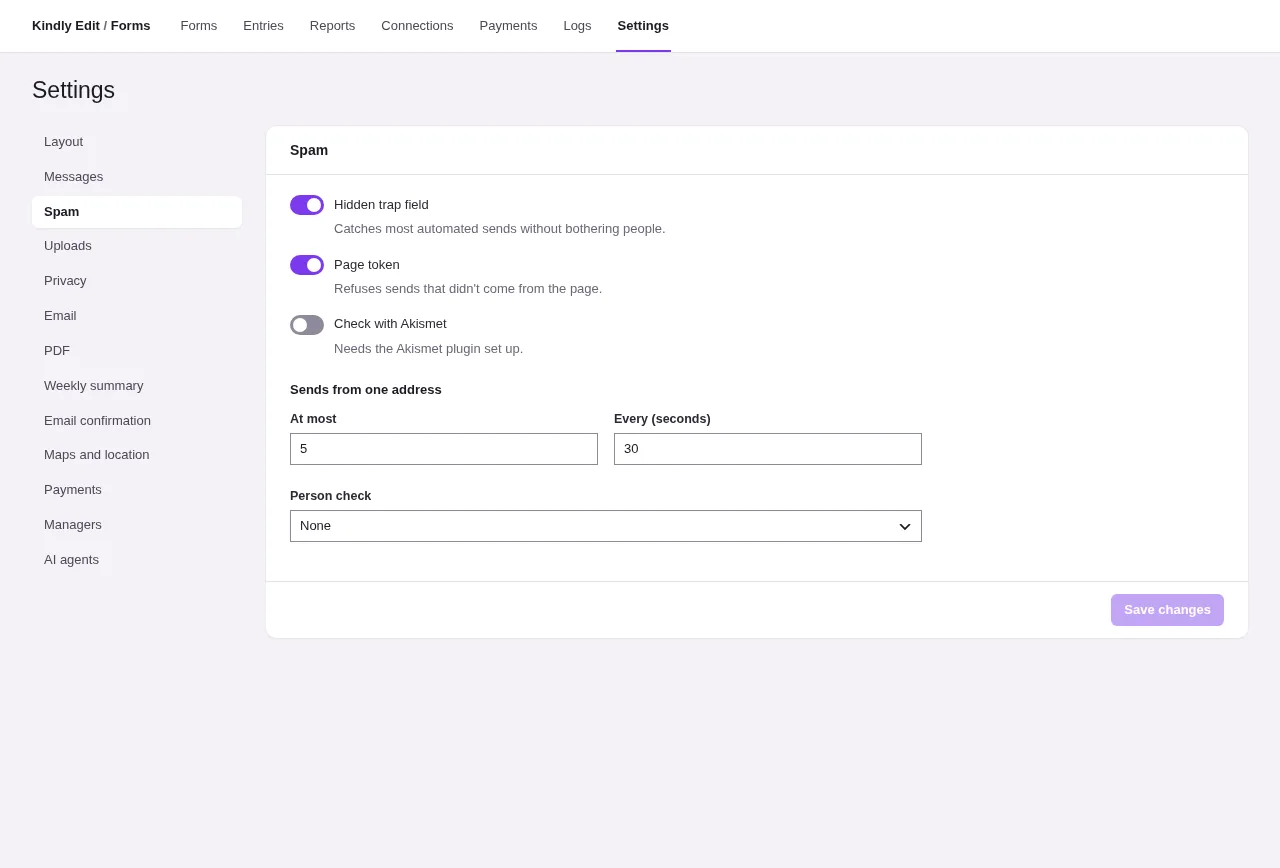
- Hidden trap field (on): a field people never see. Sends that fill it are refused.
- Page token (on): refuses sends that didn't come from the page.
- Check with Akismet (off): needs the Akismet plugin set up. Answers Akismet flags are kept in the Spam tab of Entries, where they can be restored.
- Sends from one address: At most 5 sends Every (seconds) 30, to start. More are refused with the Too many tries message.
- Person check: None, Cloudflare Turnstile, Google reCAPTCHA or hCaptcha, with that service's Site key and Secret key.
- Turnstile has Look: Match the visitor's setting, Light or Dark.
- reCAPTCHA has Version: Version 2 (a box to tick) or Version 3 (invisible, scored), and for version 3 Lowest score accepted (from 0 to 1; higher blocks more).
- Add the check to every form shows the person check on every form, whatever the form says. Without it, a form shows the check only when it asks for one.
With Add the check to every form on, the site's hidden trap field, page token and Akismet settings also apply to every form when they are on here.
Uploads#
- Keep uploaded files in: A private folder (only people who see entries) (default), The Media Library, or Both. A file field can choose its own.
- Delete files from unsent forms after (days): files uploaded on a form that was never sent are removed after this many days (2 to start).
Files in the private folder are downloaded through the site with a permission check. On servers other than Apache, block direct access to uploads/kindly-forms as described in Submissions and file uploads. For cloud copies, see File storage.
Privacy#
- Keep each sender's network address (on). Off, entries keep no network address or country. Each form can also turn it off.
- Count views and starts (on). Used for conversion in Reports. It stores counts per form per day only.
- Keep logs for (days) (60). 0 keeps them.
Email#
How form emails look. Each email is written in the form's Emails tab; see After sending.
- From name and From address. Each email can set its own. With no from address here or on the email, WordPress's usual sender is used.
- Logo, Accent color and Footer for the email layout.
PDF#
The starting look of new PDF documents. Each document can change it.
- Paper (Letter, Legal, A4, A5) and Orientation (Portrait or Landscape)
- Margins (mm) and Direction (Left to right or Right to left)
- Font and Text size (pt)
- Colors: Text, Headings and Accent
- Logo (empty uses the email logo), Border (None, Thin line, Double line) and Page numbers
- Download links work for (days): how long a document link in an email keeps working (7 to start)
Weekly summary#
Email a weekly summary of new entries sends, once a week on the chosen Day, how many answers each form received in the last 7 days, with a link to Entries. Send to takes email addresses separated by commas; empty sends to the site's address. Subject is optional.
Email confirmation#
The email sent by forms that ask people to confirm their email before their answers count (double opt-in). Each form can use its own words.
- Subject (starts as "Please confirm your email") and Message.
#confirmation_url#becomes the link to confirm. - From name and From address.
Maps and location#
- Google Maps key: for address suggestions and maps on address fields.
- ipinfo.io token: for guessing a visitor's country on phone fields and for country rules in restrictions.
- Address word for form pages: form pages live at your site's address, then this word (
formto start), then the form's own address.
Payments#
Take payments with forms turns payments on. Then:
- Currency (three letters, like USD), Symbol position, Decimal mark and Thousands separator.
- Your business on receipts: Name, Email, Address and Logo.
- Receipt page and Page where people manage payments.
Payment methods, transactions and coupons are under Payments. See Payments.
Managers#
Give people who aren't administrators the parts of Forms they need. Find a person by name or email, Add them, and tick what they may do:
| Permission | Lets them |
|---|---|
| See forms | Open Kindly Edit > Forms and see the forms |
| Build and change forms | Make, change, publish and delete forms |
| See entries | Open entries and logs |
| Change entries | Change statuses, edit answers, add notes, import, send emails again, run connections again |
| Delete entries | Delete entries forever |
| See reports | Open Reports |
| Payments | See payments and coupons, and refund |
A new manager starts with See forms and See entries. Settings stay with administrators, so a manager can never widen anyone's access, their own included. Opening the hub also needs access to the Kindly menu (the WordPress edit_pages capability).
Without a manager entry, these rights follow WordPress roles: editors and administrators (edit_others_pages) can work with forms and entries; payments and settings need manage_options. Developers can change any of this with the kindly_forms_can filter; see the developer reference.
AI agents#
Let AI agents work with forms (off) adds the Kindly Forms tools to the site's AI abilities. Agents sign in as a person on this site and can only do what that person may do. See Forms and AI.