
Entries and reports
Find, filter, read, edit, export and import entries, work with them in bulk, and read each form's report.
Every answer a form keeps is an entry. Entries live in Kindly Edit > Forms > Entries, with a report for each form beside them. Who can see, change or delete entries is set per person in Settings > Managers; administrators can always do everything.
The entries list#
Open Entries, then pick a form in the switcher at the top. With no form picked, the list shows every form's entries together, with fewer columns. Report opens that form's report and Edit form opens it in the builder.
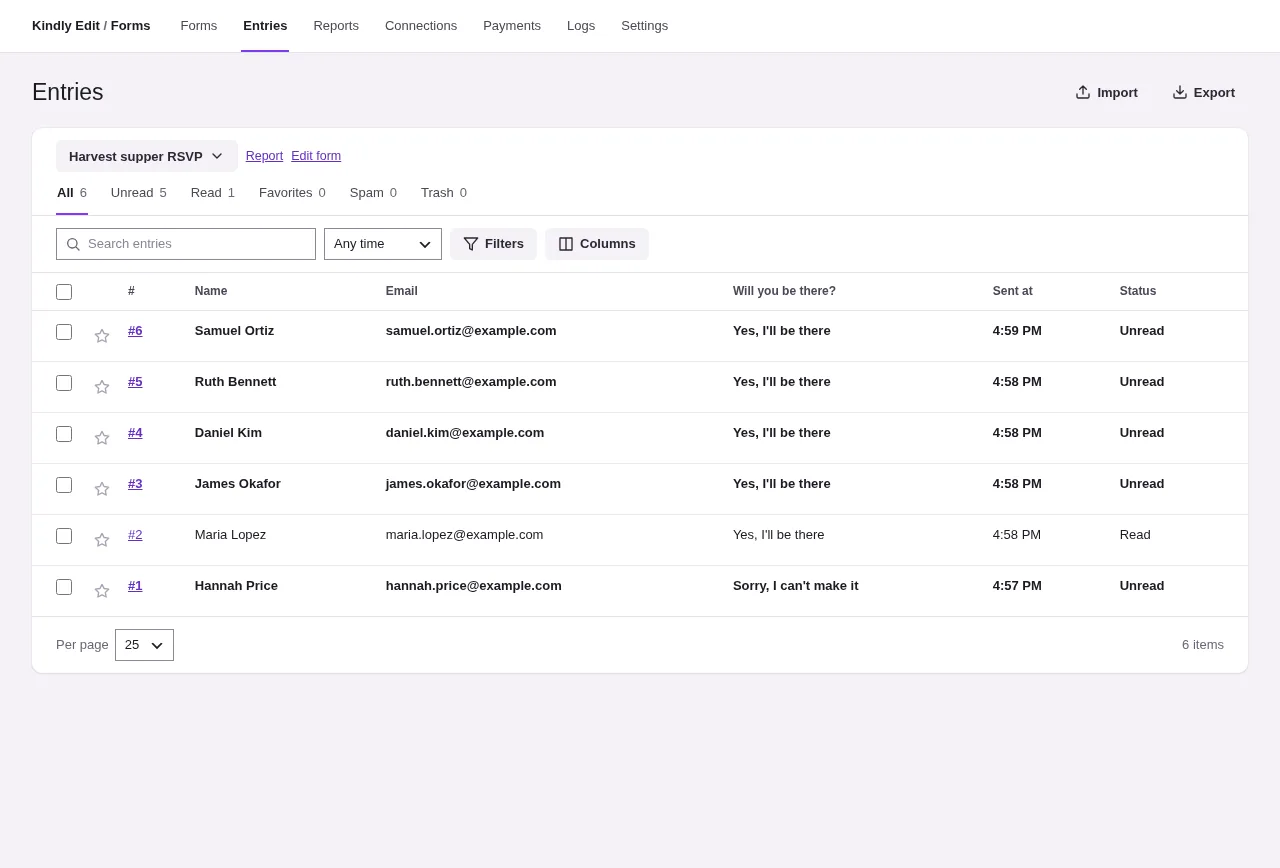
The status tabs above the list filter it. Each shows its count.
| Tab | Shows |
|---|---|
| All | Every entry except spam and trash |
| Unread and Read | Whether someone has opened it. Opening an entry marks it read |
| Favorites | Entries starred with the favorite button, for one form |
| Waiting for approval, Approved, Declined | Shown when the form uses admin approval or has entries in these states |
| Email not confirmed | Shown when the form uses double opt-in |
| Spam | Entries the spam checks kept aside, and entries marked as spam |
| Trash | Entries moved to the trash. They can be restored or deleted forever |
| Unfinished | Shown when the form keeps unfinished answers or lets people save and finish later |
Beside the tabs:
- Search entries looks through the answers.
- The date range offers Any time, Today, Last 7 days, Last 30 days, Last 90 days, This month, This year and Choose dates.
- Filters (with a form picked) adds conditions on answers. Each is a field, a comparison (is, is not, contains, doesn't contain, starts with, ends with, is more than, is less than, is at least, is at most, is empty, isn't empty) and a value. Every filter must match. Clear filters removes them.
- Columns chooses which answers and details appear, and their order. Besides the form's fields there are Sent at, Status, Person, Network address, Browser, Device, Country, Sent from, Payment and Amount. The choice and Entries per page are saved for you, for that form.
Click a column heading to sort by it. Click a row to open the entry. Search, dates, filters, sorting and the page number are kept in the address, so a filtered list can be bookmarked or shared with a colleague who can see entries.
Bulk actions#
Tick entries, or the box in the heading row for the whole page. A bar appears with:
- Choose an action, then Apply: Mark read, Mark unread, Add to favorites, Remove from favorites, Approve and Decline (for entries waiting for approval), Mark as spam, Run connections again, and Restore in Spam and Trash.
- Move to trash, or Delete forever in Spam and Trash. Deleting forever asks first and removes the answers, notes and files. An entry whose subscription is still running warns that deleting it doesn't cancel the subscription; its payments are kept (see Payments).
- Export and Print for the chosen entries.
- Download PDFs when the form has PDF documents switched on.
- Clear selection.
The list changes straight away and goes back if the site refuses the change.
Unfinished answers#
The Unfinished tab lists progress people saved to finish later and, when the form keeps them, answers left part way. Each row shows Answers so far, Who, whether it was Saved to finish later or Left part way, the step reached and Last saved. Unfinished answers can only be deleted. Deleting them also stops their links to finish from working.
One entry#
An entry opens with its number (Entry #12), its status and when it was sent. Previous entry and Next entry move through the list in its current order.
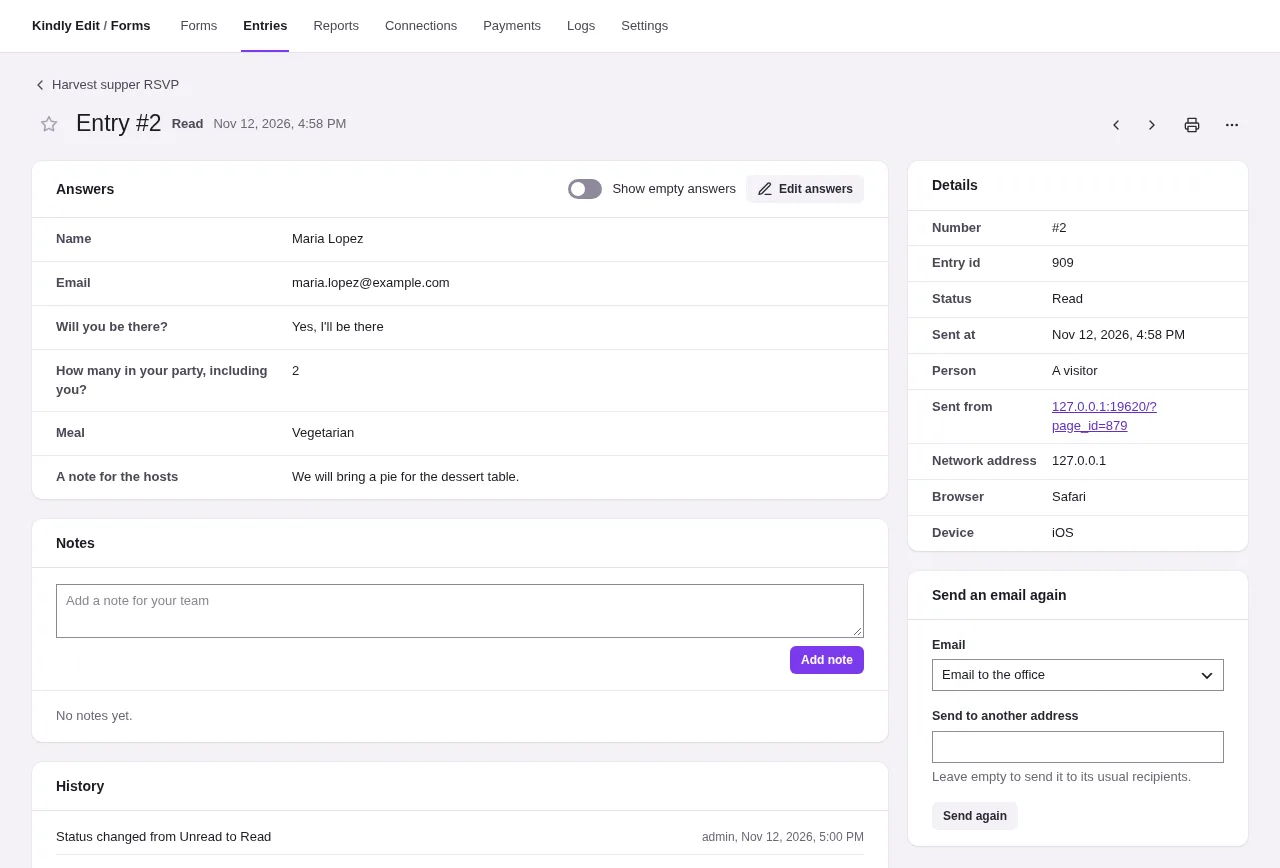
- Answers lists every answer in the form's order. Show empty answers includes questions left blank. Edit answers opens the answers for correction; Save answers keeps the change and records it in the history.
- Notes are private notes for your team: type in Add a note for your team, then Add note.
- History shows what happened to the entry: emails sent or not sent, connections, status changes, edits, notes and payments.
The side column holds:
- Details: Number, Entry id, Status, Sent at, Person (the signed-in account, or A visitor), Sent from, Network address, Browser, Device and Country. The network address and country are kept only when Privacy allows it.
- Payment, for forms that take payments, with Refund for people allowed to manage payments. See Payments.
- Stored files, when uploads were copied to cloud storage.
- Send an email again: pick one of the form's emails and Send again. Leave Send to another address empty to send it to its usual recipients.
The buttons at the top:
- Approve and Decline, while the entry is waiting for approval.
- Mark email confirmed, while its email is not confirmed.
- Download PDF, one item per switched-on document.
- Print.
- The favorite star.
- More actions: Mark unread or Mark read, Run connections again, Mark as spam, Restore (in Spam and Trash), Move to trash and Delete forever.
Run connections again queues every connection of the form for this entry, for example after fixing a key. The result appears in the entry's history and in Logs.
Export and import#
Export downloads the entries listed now, with the same search, dates, filters and order. From the bulk bar it downloads only the entries you chose.
| Format | Notes |
|---|---|
| CSV | A header row and one row per entry |
| Excel (.xlsx) | One sheet |
| OpenDocument (.ods) | One sheet |
| JSON | Every answer and detail, in the shape Import reads back |
With a form picked, choose the columns to include: each field, Number, Entry id, the detail columns, Favorite and Notes.
Import (with a form picked) adds entries to that form:
- Choose a CSV with a header row, or a JSON entries export. Columns separated by can be left on Work it out, or set to Commas, Semicolons or Tabs.
- Optionally turn on Delete this form's current entries first. It asks again before deleting anything.
- Continue. For a CSV, match each Column in the file to the field it Goes into, or Skip this column. The first value of each column is shown to help.
- Import. Empty rows are skipped and counted.
Imported entries do not send emails or run connections.
Reports#
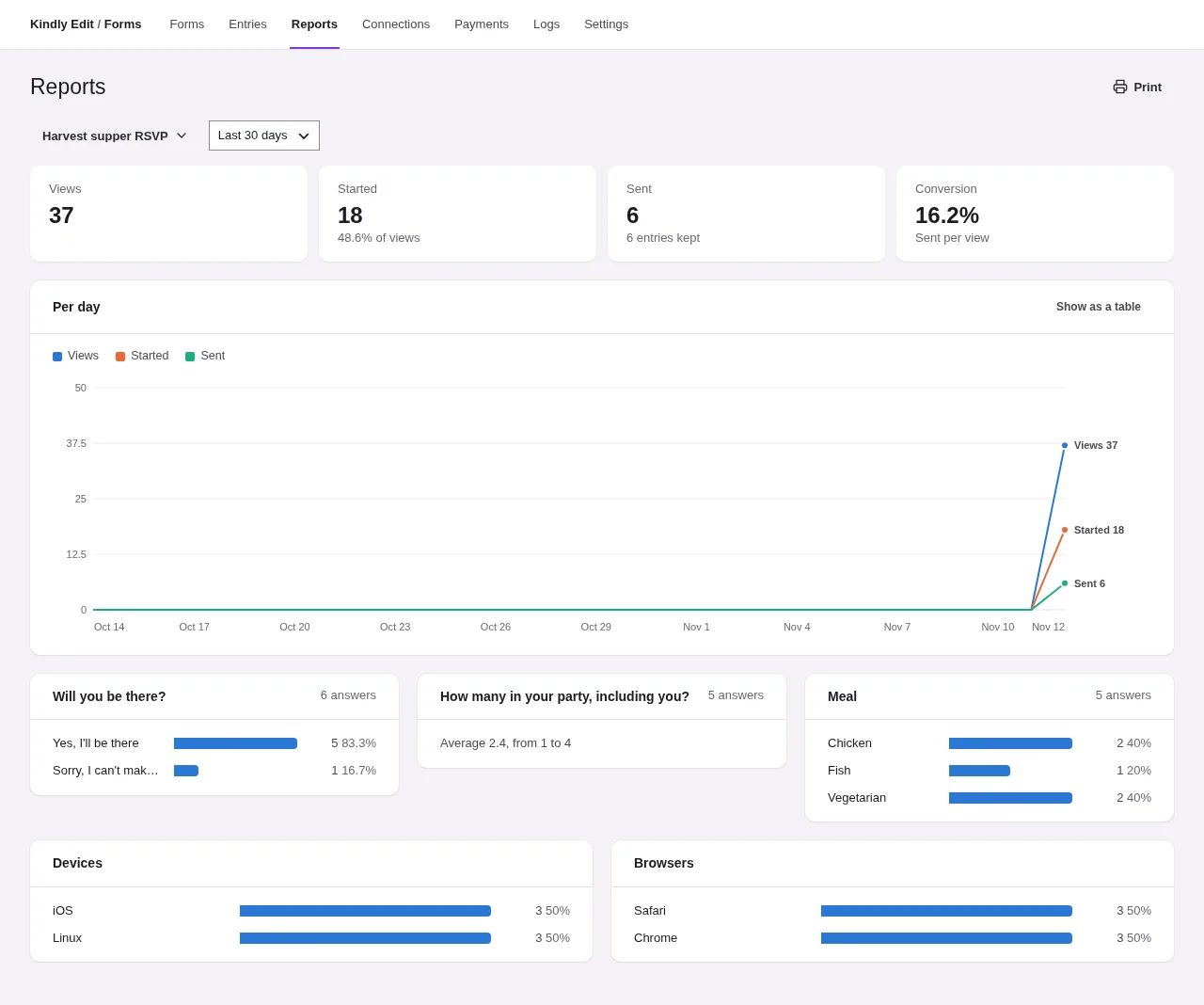
Reports summarizes one form, or all of them, for a date range (the last 30 days to start). Print prints the page.
- Views, Started, Sent and Conversion (sends per view). Views, starts and sends are counted only while Count views and starts is on in Privacy, and only for visitors: your own tests, by anyone who can edit the form, and search engine bots are left out, so trying a form doesn't change its numbers. Entries still keeps every send. Only counts are stored, nothing about the visitor.
- Per day: views, starts and sends as a chart. Show as a table switches to the numbers.
- For all forms, a table of each form's views, sends, conversion, entries and unread entries, with links to each.
- For one form, Answers: each choice, rating and number question with how many answered, bars with the count and share of each choice, the average with its range for numbers, and the score with Promoters, Passives and Detractors for a Net Promoter Score question.
- Devices and Browsers of the people who sent it.
- Payments, for forms that take them: count and total by payment status.
Keeping data tidy#
- Spam and trash do not count toward All or the menu's unread bubble.
- Delete files from unsent forms after (days) and Keep logs for (days) in Settings clean up uploads and logs.
- A form's Settings tab, under Privacy and storage, has Delete answers after this many days. A daily task removes older entries with their files. With Keep answers in Entries turned off, no entry is kept and answers are only emailed.
- Saved answers are removed by the same daily task after the form's Keep saved answers for (days) (30 by default). Entries still waiting for an email confirmation are removed after the site's Delete unconfirmed entries after (days), when it is set.
- Deleting an entry forever also deletes its files kept on this site. Copies already sent as email attachments, or moved to cloud storage, are not removed.